
5. Search
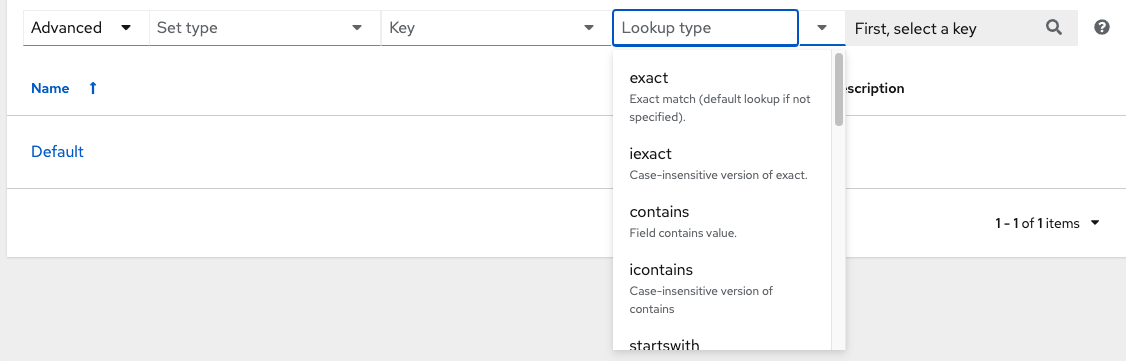
Ascender has a powerful search tool that provides both search and filter capabilities that span across multiple functions. Acceptable search criteria are provided in an expandable “cheat-sheet” accessible from the Advanced option from the Name drop-down menu in the search field. From there, use the combination of Set Type, Key, Lookup type to filter.
5.1. Searching Tips
These searching tips assume that you are not searching hosts. Most of this section still applies to hosts but with some subtle differences. A typical syntax of a search consists a field (left-hand side) and a value (right-hand side). A colon is used to separate the field that you want to search from the value. If a search doesn’t have a colon (see example 3) it is treated as a simple string search where ?search=foobar is sent. Here are the examples of syntax used for searching:
name:localhostIn this example, the string before the colon represents the field that you want to search on. If that string does not match something from Fields or Related Fields then it’s treated the same way Example 3 is (string search). The string after the colon is the string that you want to search for within the name attribute.organization.name:DefaultThis example shows a Related Field Search. The period in the left-hand portion separates the model from the field in this case. Depending on how deep/complex the search is, you could have multiple periods in that left-hand portion.foobarSimple string (key term) search that will find all instances of that term using anicontainssearch against the name and description fields. If a space is used between terms (e.g. foo bar), then any results that contain both terms will be returned. If the terms are wrapped in quotes (e.g. “foo bar”), Ascender will search for the entire string with the terms appearing together. Specific name searches will search against the API name. For example,Management jobin the user interface issystem_jobin the API.organization:DefaultThis example shows a Related Field search but without specifying a field to go along with the organization. This is supported by the API and is analogous to a simple string search but done against the organization (will do anicontainssearch against both the name and description).
5.1.1. Values for search fields
To find values for certain fields, refer to the API endpoint for extensive options and their valid values. For example, if you want to search against /api/v2/jobs -> type field, you can find the values by performing an OPTIONS request to /api/v2/jobs and look for entries in the API for "type". Additionally, you can view the related searches by scrolling to the bottom of each screen. In the example for /api/v2/jobs, the related search shows:
"related_search_fields": [
   "modified_by__search",
   "project__search",
   "project_update__search",
   "credentials__search",
   "unified_job_template__search",
   "created_by__search",
   "inventory__search",
   "labels__search",
   "schedule__search",
   "webhook_credential__search",
   "job_template__search",
   "job_events__search",
   "dependent_jobs__search",
   "launch_config__search",
   "unifiedjob_ptr__search",
   "notifications__search",
   "unified_job_node__search",
   "instance_group__search",
   "hosts__search",
   "job_host_summaries__search"
The values for Fields come from the keys in a GET request. url, related, and summary_fields are not used. The values for Related Fields also come from the OPTIONS response, but from a different attribute. Related Fields is populated by taking all the values from related_search_fields and stripping off the __search from the end.
Any search that does not start with a value from Fields or a value from the Related Fields, will be treated as a generic string search. Searching for something like localhost will result in the UI sending ?search=localhost as a query parameter to the API endpoint. This is a shortcut for an icontains search on the name and description fields.
5.1.3. Other search considerations
The following are a few things about searching in Ascender that you should be aware of:
There’s currently no supported syntax for OR queries. All search terms get AND’d in the query parameters.
The left-hand portion of a search parameter can be wrapped in quotes to support searching for strings with spaces.
Currently, the values in the Fields are direct attributes expected to be returned in a GET request. Whenever you search against one of the values, Ascender essentially does an
__icontainssearch. So, for example,name:localhostwould send back?name__icontains=localhost. Ascender currently performs this search for every Field value, evenid, which is not ideal.
5.2. Sort
Where applicable, use the arrows in each column to sort by ascending or descending order (following is an example from the schedules list).
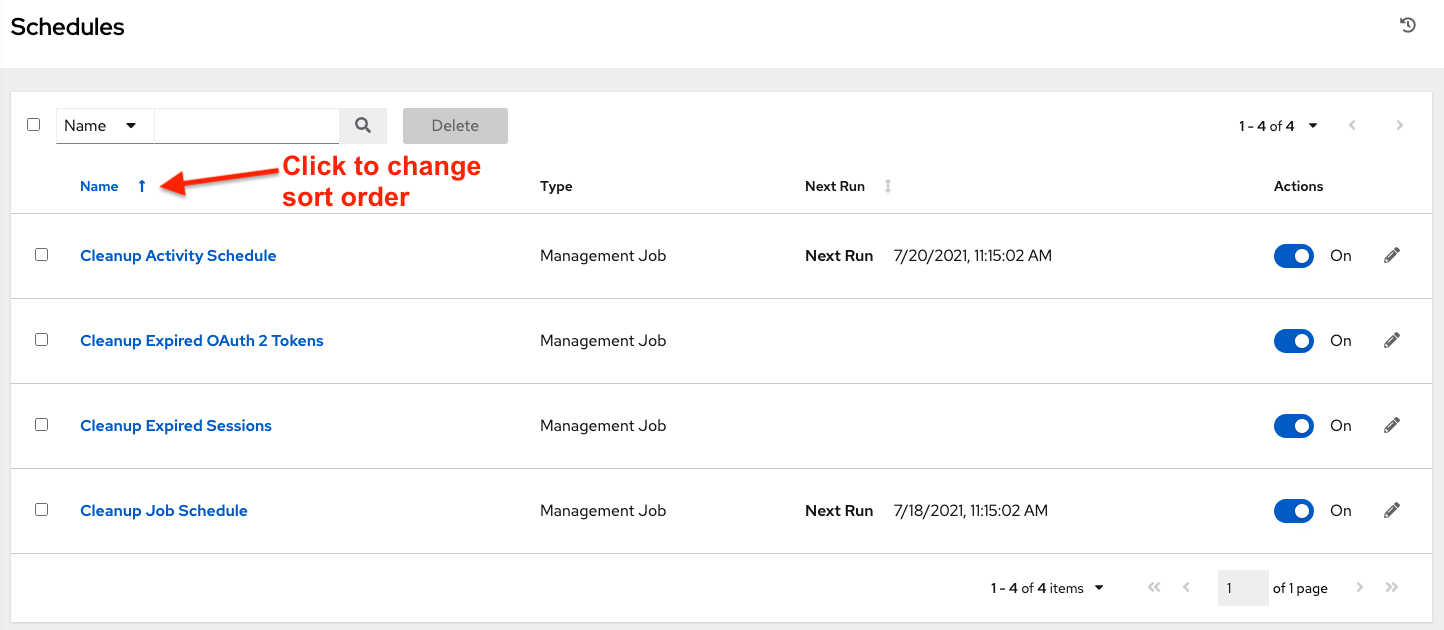
The direction of the arrow indicates the sort order of the column.